FocuSee Screen Recorder

Core FocuSee Functionality and Automation
FocuSee's primary function is to automate the editing of screen recordings. It records your screen, selfie video, and voiceover, then automatically follows cursor movement, applies dynamic zoom effects, adds backgrounds, and generates a professional-looking video without requiring manual editing. This automation is intended to save users significant time and effort in video editing.
FocuSee Key Features
FocuSee screen recorder offers a range of tools to create, refine, and captivate an audience with videos:
Screen Recording
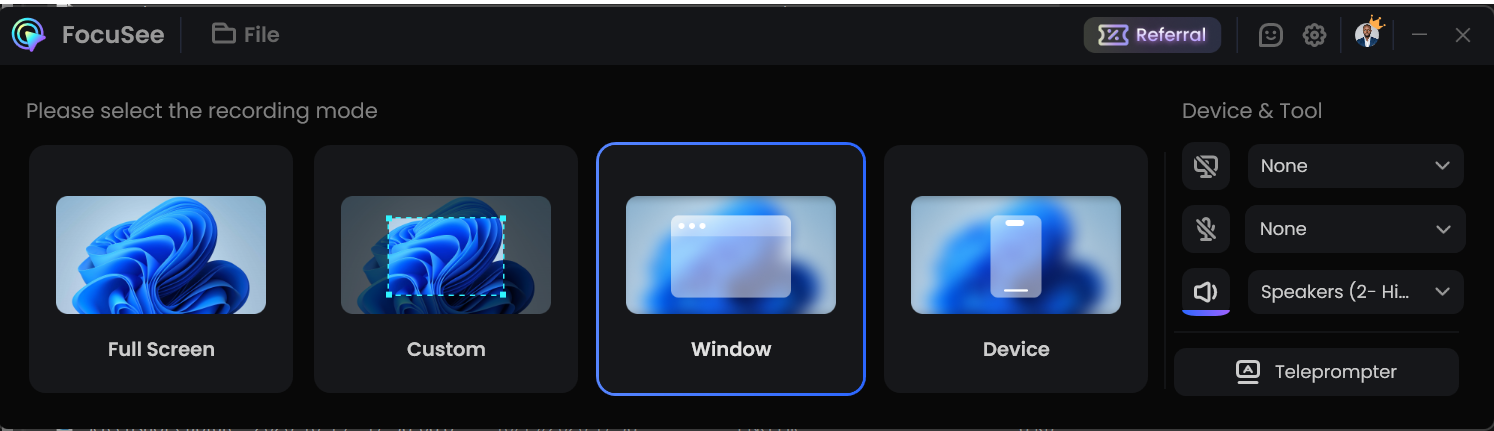
Built-In Teleprompter Overlay: Displays your script on-screen to help you stay on track and deliver smooth presentations.
Capture and Display Keyboard Shortcuts: The screen recording software automatically shows keyboard shortcuts during recordings, making tutorials clearer.
Simultaneous Mic and System Audio Recording: Captures both microphone narration and system sound with separate audio tracks, useful for tutorials and voiceovers.
Record Screen, Selfie, and Voiceover: Allows recording of all these elements together.
Automated Editing and Customization
Automatic Zoom-in Effect: The software automatically follows cursor movement and applies dynamic zoom effects to highlight focal points. Users can also adjust zoom positions, levels, and durations, or add new zooms.
Mouse Cursor Effects: The tool offers 8 mouse cursor styles and 3 button click effects to match video style.
Camera Layout: Choose from preset layouts or customize camera size and position throughout the video.
Backgrounds: Places a "nice background" automatically. Users can also design their video's look by adding backgrounds and adjusting rounded corners, shadows, and padding.
Create Customized Presets: Save customized settings for zoom, cursor, background, etc., and apply them with a single click for consistent style.
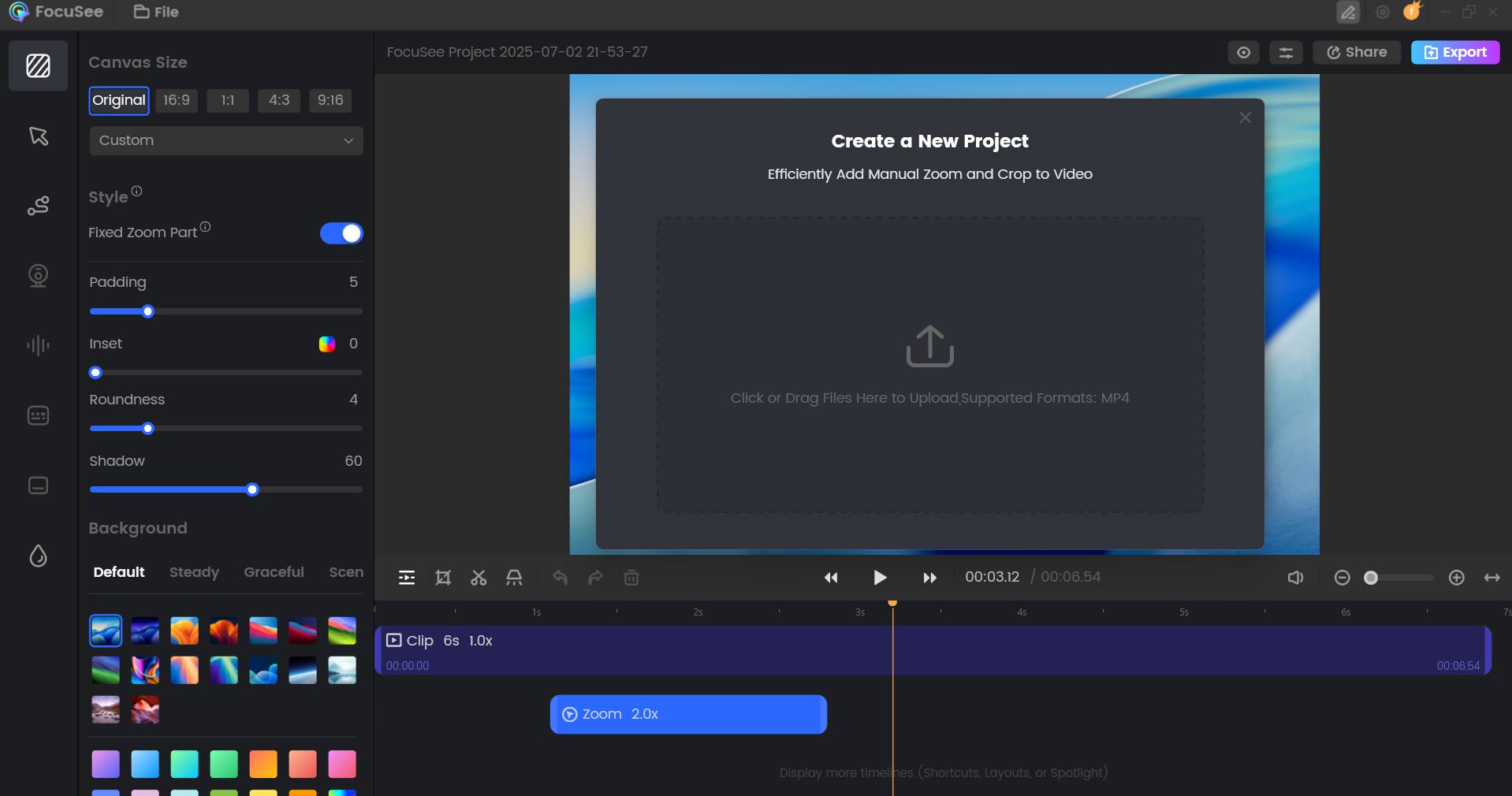
Precision Editing Tools
Import Local Video Files: Upload existing video files to start a new project, edit, and export them.
Trim and Change Speed: Trim, cut, crop, speed up, or slow down specific portions of the video.
Add Automatic Captions Instantly: The screen recorder automatically generates captions that can be edited for accuracy.
Protect Privacy with Pixelation: Easily blur faces, text, or confidential details. Currently, this feature is only supported on Mac, with Windows support coming soon.
Final Touches
Add Watermark: Add a watermark to enhance brand identity and protect copyright.
Elevate Video with Motion Blur: Achieve natural movements and make videos more cinematic.
Diverse Frames and Filters: Customize appearance with camera frames and filters.
Export and Sharing Options
FocuSee AI provides multiple export and sharing capabilities:
Preset Size for Social Media: Choose from preset aspect ratios for platforms like YouTube, Twitter, TikTok, etc., with automatic adjustment of animations and effects.
Export as Video or GIF: Content can be exported as videos up to 4K resolution or as high-quality GIFs.
Instant Delivery via Shareable Link: Upload the final video to generate a shareable link, with options for password protection for privacy and access control.
Use Cases
FocuSee is a Screen Studio alternative designed for various video creation needs, especially those benefiting from focused attention and automatic editing:
Demos and Tutorials: Craft engaging demos and tutorials that can highlight details while still offering an overview. It also allows for in-video quizzes, forms, and call-to-action buttons.
Promo and Launch Videos: Record captivating videos for product releases and updates, resizable for various social media platforms.
Pitch and Sales Videos: Create compelling videos with side-by-side displays of selfies and screens, complemented by voiceover narration, to add a personal touch.
General Screen Recording: Users appreciate FocusSee AI for quick "how-to" guides and general screen recording tasks.
How to Get Started with the FocuSee App
FocuSee Download: Visit the FocuSee AI website, select your OS (macOS or Windows), install and launch the FocuSee app, create an account, and sign in.
Record Your Workflow: Launch FocuSee and select your screen area. Use the built-in teleprompter to keep your presentation on track.
Let AI Handle the Edit: Once you stop recording, FocuSee automatically applies dynamic zoom effects to your mouse clicks and highlights important actions.
Export and Share: Preview it, polish and choose your aspect ratio for TikTok, YouTube, or LinkedIn and export your video in 4K or as a high-quality GIF.
FocuSee Pricing and Plans
FocuSee offers different pricing plans, including one-time purchases and a 30-day plan:
1. One-Time Purchase Plans
These plans offer lifetime usage and free updates to the current major version (e.g., Version 1), but upgrading to the next major version (e.g., Version 2) incurs an additional cost.
1-Computer Plan: $69.99 for use on up to 1 device (Win/Mac) with 1 GB cloud storage valid for 1 year.
2-Computer Plan: $95.99 for up to 2 devices (Win/Mac) with 2 GB cloud storage valid for 1 year.
5-Computer Plan: $179.99 for up to 5 devices (Win/Mac) with 5 GB cloud storage valid for 1 year.
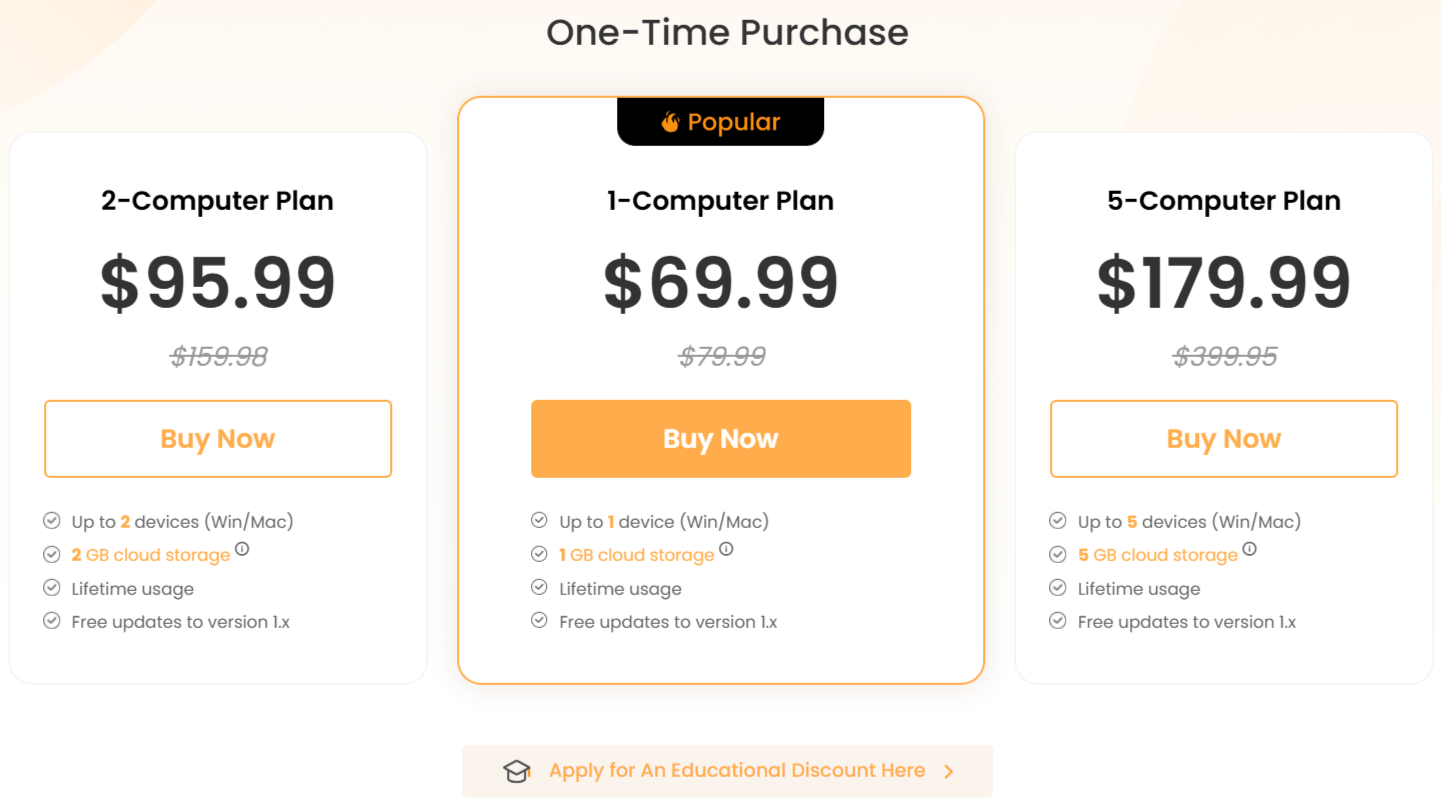
Note: Cloud storage automatically deactivates upon expiration after 1 year.
2. 30-Day Plan
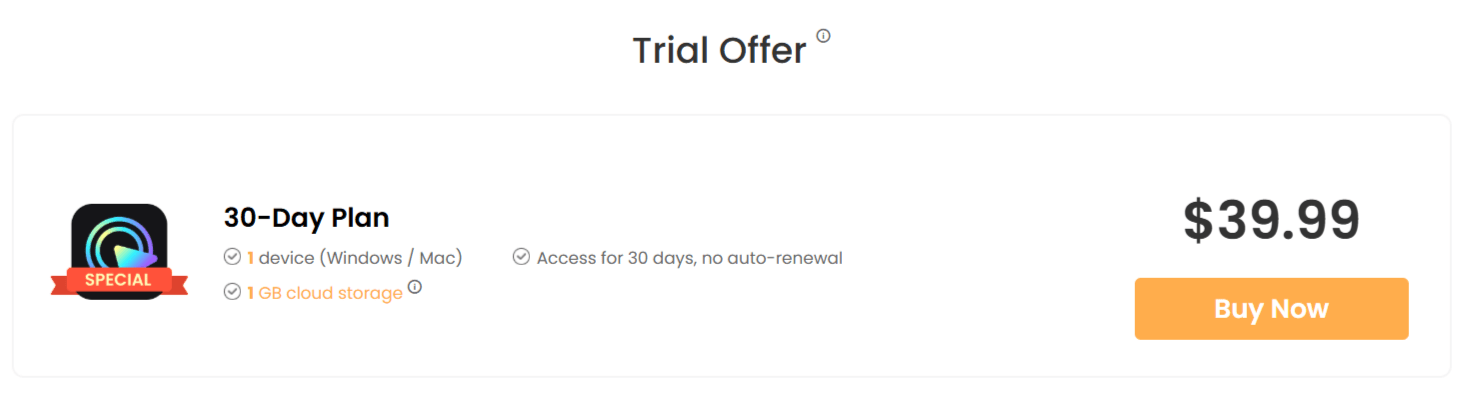
This plan is billed at $39.99 for access for 30 days on 1 device (Windows/Mac) with 1 GB cloud storage valid for 30 days. This is not a subscription and does not auto-renew. A single computer can only be bound to one 30-day plan at a time; purchasing another 30-day plan before the current one expires allows use on a different computer.
3. Educational Discount
Available for students, teachers, and staff upon contacting FocuSee Support.
Refund Policy
A refund for a one-time purchase plan can be requested within 30 days of purchase.
Note: There’s no refund for the 30-day plan.
Trial and Activation
Free Trial: FocuSee app offers a free trial that allows users to explore all features and export one video in up to 4K locally on their computer, though it will include a watermark.
Activation: To activate FocuSee after purchase, you need to sign up and log in to your account using the email used during purchase. Once logged in, FocuSee activates automatically.
Device Transfer: FocuSee allows users to transfer their account from an old device to a new one twice a year for reasons like a broken, sold, or lost device, or acquiring a new one. This requires contacting support and providing the activated email account.
System Specificity for 1-Computer Plan: A 1-computer plan is bound to the first system (Windows or macOS) it is activated on. To use FocuSee on both systems, the 2-computer plan is required.
System Requirements and Supported Languages
Windows OS: Windows 10 or later, Intel i5 and above processors (dual-core 2.9GHz+), at least 8GB of RAM.
macOS: macOS 10.15 or later (optimal on macOS 12.3+), Apple M1 or later, or Intel-based Mac, at least 8GB of RAM.
Supported Languages: English, French, German, Japanese, Spanish, Korean, Simplified Chinese, Traditional Chinese.
Pros (Benefits and User Feedback)
Users praise FocuSee for several reasons:
Ease of Use and Time-Saving: Many users highlight its user-friendly interface and the significant amount of time it saves on video editing. It can turn a normal screen video into a "productive video" with ease.
Automated Features: The automatic zoom-in effects and cursor tracking are frequently mentioned as unique and highly beneficial, especially for Windows users, where such features might be scarce in other recorders.
All-in-One Solution: FocuSee consolidates the entire workflow of recording, editing, and sharing into one application, reducing the need for multiple tools and complex professional skills.
Quality Output: It helps produce "high quality," "professional-looking" videos with "cool animations and smart zoom" that can boost views.
Lightweight on Resources: Some users note that it feels good and is lightweight on computer resources.
No Limitation on Video Duration: There is no limit on how long a recording can be, though longer recordings require more time to render and export.
Cons/Limitations
Pixelation Feature for Windows: The privacy protection feature (pixelation) is currently only supported on Mac, with Windows support "coming soon".
Major Version Upgrades: While current version usage is lifetime, upgrading to a new major version (e.g., from Version 1 to Version 2) requires an additional upgrade cost.
Cloud Storage Expiration: The provided cloud storage with one-time purchase plans is valid for only 1 year and auto-deactivates upon expiration.
1-Computer Plan System Binding: The 1-computer plan is tied to the first operating system (Windows or macOS) it's activated on, meaning it cannot be switched between the two systems on a dual-boot machine.
Account Transfer Limit: Account transfers to a new device are limited to twice a year.
Support and Contact
FocuSee is developed by iMobie. For questions, problems, or download issues, you can contact support and expect a reply within 24 hours on workdays and 48 hours on holidays. Specific contact emails are provided for general inquiries, support, sales (e.g., license code issues), PR, and affiliate programs. User guides and FAQ pages are also available.
FocuSee App vs. The Competition: A Quick Comparison
Feature | FocuSee | Screen Studio | Loom |
Auto-Zoom | Yes | Yes | No |
Lifetime License | Yes | No | No |
Native Performance | High | Medium | Web-based |
Best For | Budget-conscious pros | High-end production | Quick async updates |
Share Your FocuSee Experience, Earn a Free License
FocuSee offers a program where users can earn a free license (30-day to lifetime) by sharing their experience with the software in a blog, video, or social media post.
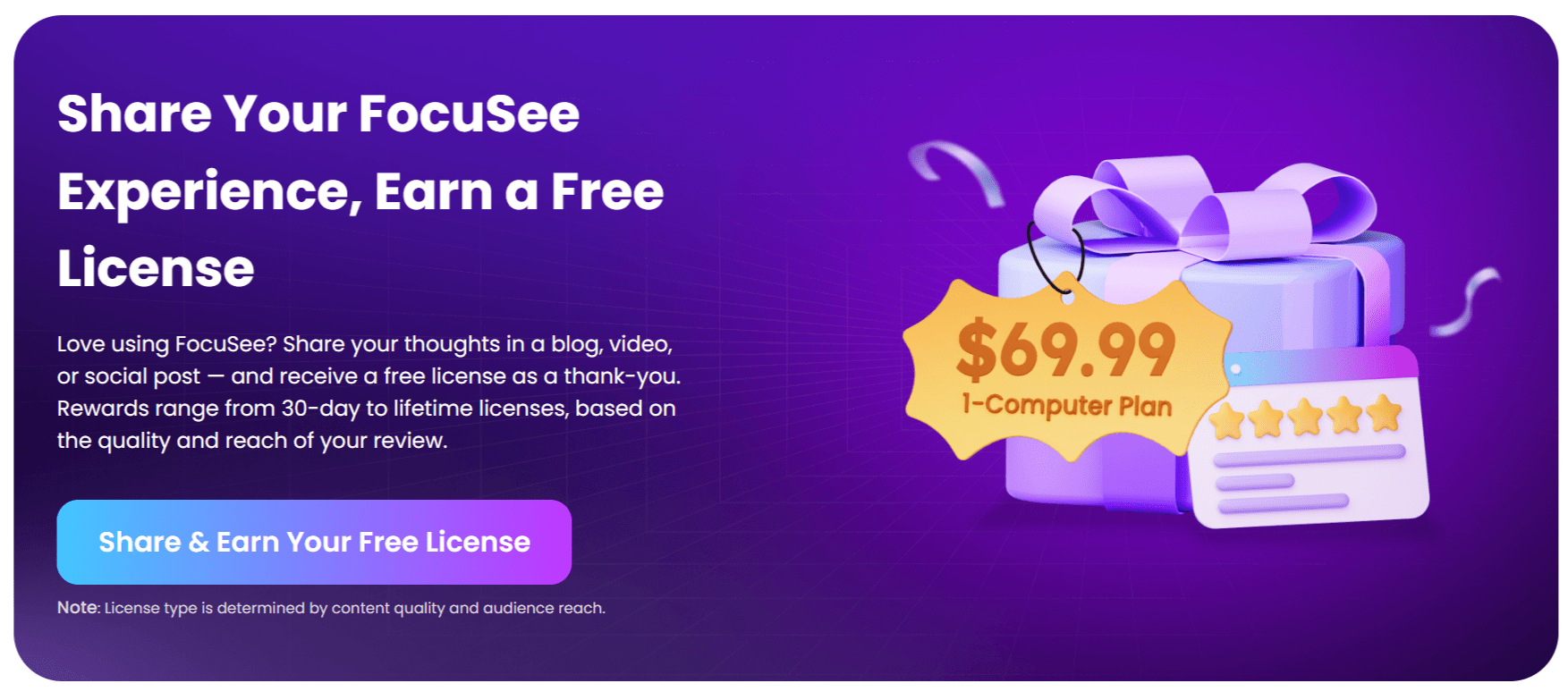
The reward type is determined by the quality and audience reach of the review. Reviews should be unique and meet specific requirements for articles (500+ words, screenshots, FocuSee download link), videos (3+ minutes, download link, 1000+ fans), or SNS posts (140+ words, screenshots, download link, 1000+ fans).
Participants also need to score FocuSee at least 4 out of 5 points on 3 software review sites like Trustpilot, Capterra, or G2. Submissions are reviewed manually within 3 working days.
Final Verdict: Is FocuSee Right for You?
If you value your time and want to produce professional-grade demos without the complex learning curve of Adobe Premiere or the high price tag of other screen recorders, FocuSee is one of the most logical choices. It is lightweight, intuitive, and designed to get your content from your screen to your audience in minutes.
Frequently Asked Questions
Here are the answers to some questions regarding FocuSee AI.
Is FocuSee a subscription or a one-time purchase?
FocuSee AI offers flexible options. You can choose a one-time purchase for lifetime access to the current major version, or opt for a 30-day plan if you only need the tool for a specific project.
Does FocuSee require extra drivers for audio?
FocuSee only prompts for an additional sound driver if you are using a macOS version below 12.3. For most modern Mac users, the app works perfectly without any extra installations.
Can I disable the auto-start webcam feature?
Yes. FocuSee remembers your last settings to save you time. If you do not want your camera to activate on launch, you can easily toggle this off in the app settings menu.
Is there a free trial available?
Yes, you can download FocuSee and test all features. The free trial allows you to export your video in 4K so you can see the quality for yourself before committing to a license.

"FocuSee is the best for recording your screen"
John Ken
I really enjoy recording my screen with FocuSee screen recorder. It's top-notch, and I recommend it.
FocuSee Screen Recorder Alternatives
View All