
How to Sync Music to AI-Generated Videos
AI video tools make it easier to create product demos, cinematic clips, short-form content, and visual stories. But when clips are generated separately, their timing does not always match the rhythm of the soundtrack. A transition may feel late, a product reveal may lack impact, or the music may stop before the final frame. The solution is to treat music synchronization as part of the editing process, not simply an audio track added at the end. This AI video post-production audio guide explains how to prepare AI-generated footage, match music to cuts and transitions, handle clips of different lengths, balance audio layers, and check the finished video before publishing.
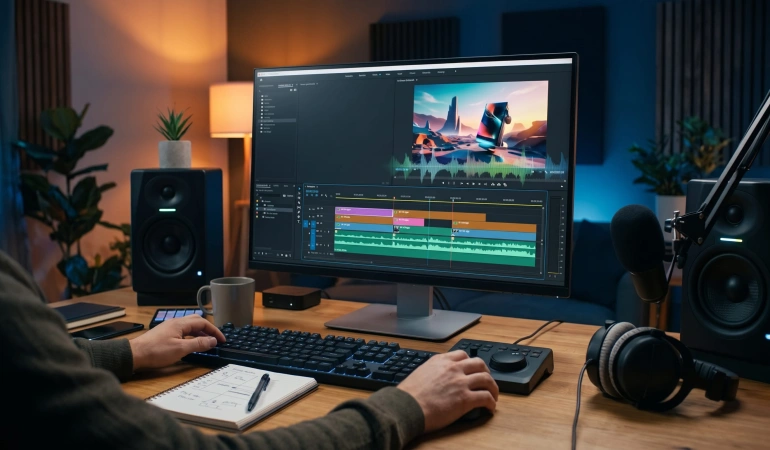
Prepare Your AI Video Before Editing the Audio
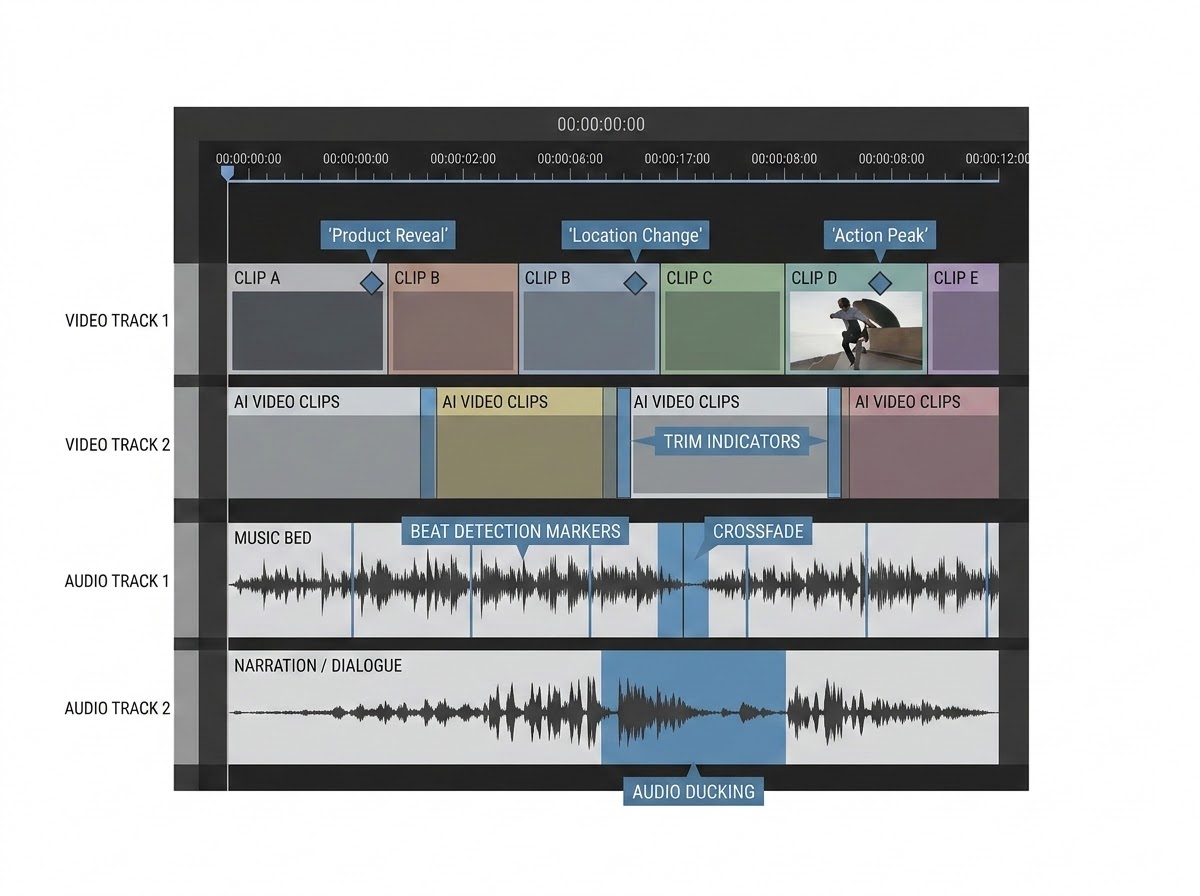
Start by arranging your generated clips into the sequence you want viewers to see. You may have created each shot separately using text-to-video or image-to-video tools, so their lengths, camera movements, and transitions may not fit together naturally.
Before adjusting the soundtrack:
Arrange the clips: Put the shots in their intended order and remove unnecessary footage.
Set the rough timing: Decide how long each shot should remain on screen.
Identify key moments: Mark product reveals, changes in location, camera movements, and important visual details.
Check the transitions: Look for awkward joins, sudden changes in motion, or frames that need trimming.
Estimate the final duration: Establish a target length before choosing where the music should begin and end.
You do not need to perfect every cut before adding music. However, a reasonably stable edit gives you a better foundation when learning how to align AI video clips with music beats and sync background music to text-to-video clips seamlessly.
If your video contains a voiceover or dialogue, place it on the timeline early enough to establish the pacing. The music should support the finished sequence rather than force important spoken lines into awkward positions.
If you haven't chosen a soundtrack yet, our guide to background music for AI videos covers the earlier decision of selecting suitable music when syncing soundtracks to cinematic AI clips.
Identify the Moments That Need Musical Emphasis
Not every cut needs to land on a beat. Music synchronization works best when the soundtrack supports the visual story without making every movement feel mechanical.
Look for moments where a musical accent, pause, or change in energy could strengthen what viewers see.
For example, a 20-second AI-generated product video might contain four shots:
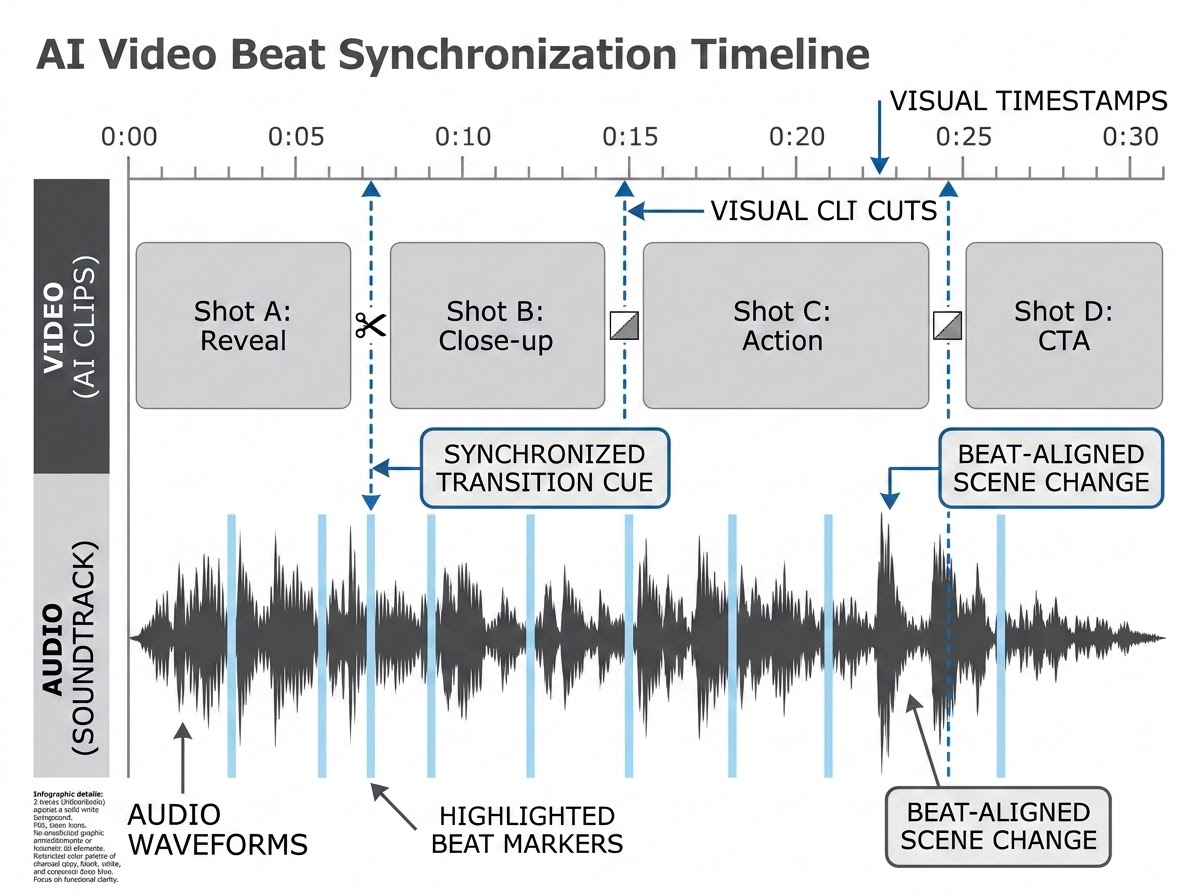
These timings are illustrative, not fixed rules. A slower cinematic sequence may need longer shots, while a fast product teaser may benefit from quicker cuts.
The important step is to decide which visual moments deserve emphasis before moving the soundtrack around. This makes your editing choices more intentional and helps prevent excessive cuts that follow the music without serving the story.
Sync Music to Cuts and Transitions
There are two practical ways to synchronize music with AI-generated footage: edit the visuals to the soundtrack or adjust the soundtrack to the visuals.
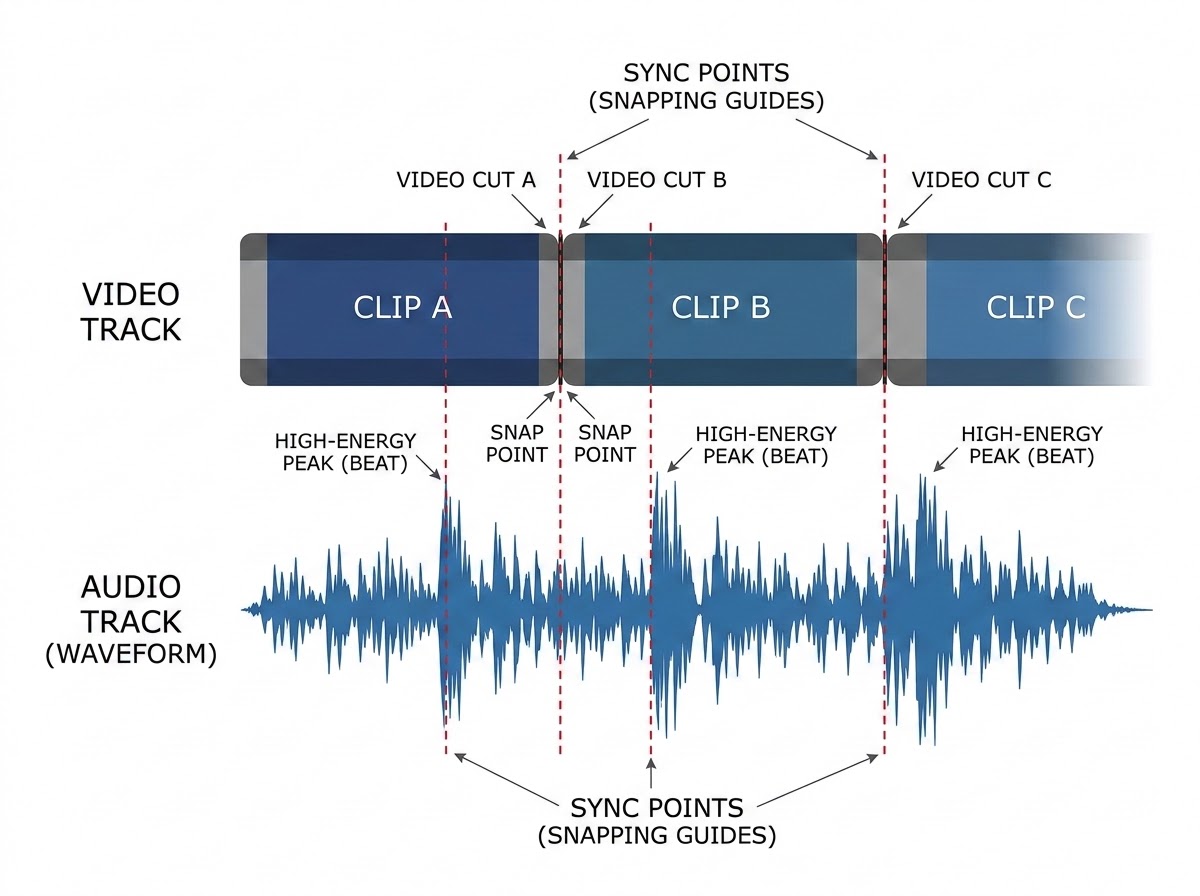
Edit the visuals to the music
This approach works well when the soundtrack establishes the pace of the video, such as a fashion montage, promotional teaser, or music-driven social clip.
Add the music to your editing timeline.
Listen for prominent beats, changes in melody, pauses, and shifts in energy.
Add timeline markers at the moments that matter.
Move your video cuts or transitions toward those markers.
Play the sequence from a few seconds before each cut to check whether the timing feels natural.
A strong beat can emphasize a product reveal or a change of scene. A sustained note may work better for a slow camera movement or a gradual transition.
Do not force every shot to end on a beat. If a visual moment needs more time, let it breathe. A sequence that feels natural is more effective than one in which every cut is mechanically synchronized.
Edit the music to the visuals
If the footage is already approved or the timing is important, keep the visuals in place and adjust the soundtrack instead.
Find natural edit points in the music, preferably at the end of a phrase or between sections. Trim the track there rather than cutting through a note or an important rhythmic accent.
When you need to join two sections, use a short crossfade if it sounds appropriate. Listen for sudden changes in volume, rhythm, or instrumentation. A crossfade can hide an awkward join, but it cannot make two incompatible musical sections sound seamless in every case.
If the soundtrack is too long, remove a repeated phrase or section when possible. If it is too short, look for an appropriate extension or another track rather than repeating an obvious section until the video ends.
Edit Music When AI Clips Have Different Lengths
AI-generated clips often arrive in different durations. One shot may end just as the music builds, while another may continue beyond the point where the soundtrack changes direction.
The best fix depends on whether the problem is in the footage or the music.
If you need a new soundtrack or want to explore a different musical direction, an AI tool that turns a short prompt into a full song can help you create a starting point for your edit. Describe the mood and pacing you want, then adjust the generated track to fit your footage in your video editor.
When a clip is too long: Trim it at a natural point in the movement. A camera settling, a subject completing an action, or a brief pause can provide a cleaner cut than stopping in the middle of a gesture.
When a clip is too short: Try a different section of the generated footage, use a suitable transition, or hold the final frame briefly if the image supports it. Avoid stretching footage so much that movement looks unnatural.
When the music ends too early: Look for a longer version or extend a section that can repeat without becoming obvious. A new musical phrase may also work if it suits the remaining visuals.
When fixing audio timing issues in AI-generated videos: Adjust the cut or use a transition that fits the movement and the music. If the shots differ significantly in pace, a brief pause or a longer establishing shot may help, or you can utilize built-in AI video editor audio sync capabilities.
These adjustments matter because music cannot fix every editing problem. If the visual sequence feels disjointed without sound, revise the cuts before relying on the soundtrack to make them feel connected.
Mix Music, Narration, and Sound Effects
A finished AI video may contain several audio layers: music, narration, dialogue, and sound effects. Knowing how to mix narration and music in AI video editing ensures each element plays a clear role in the mix.
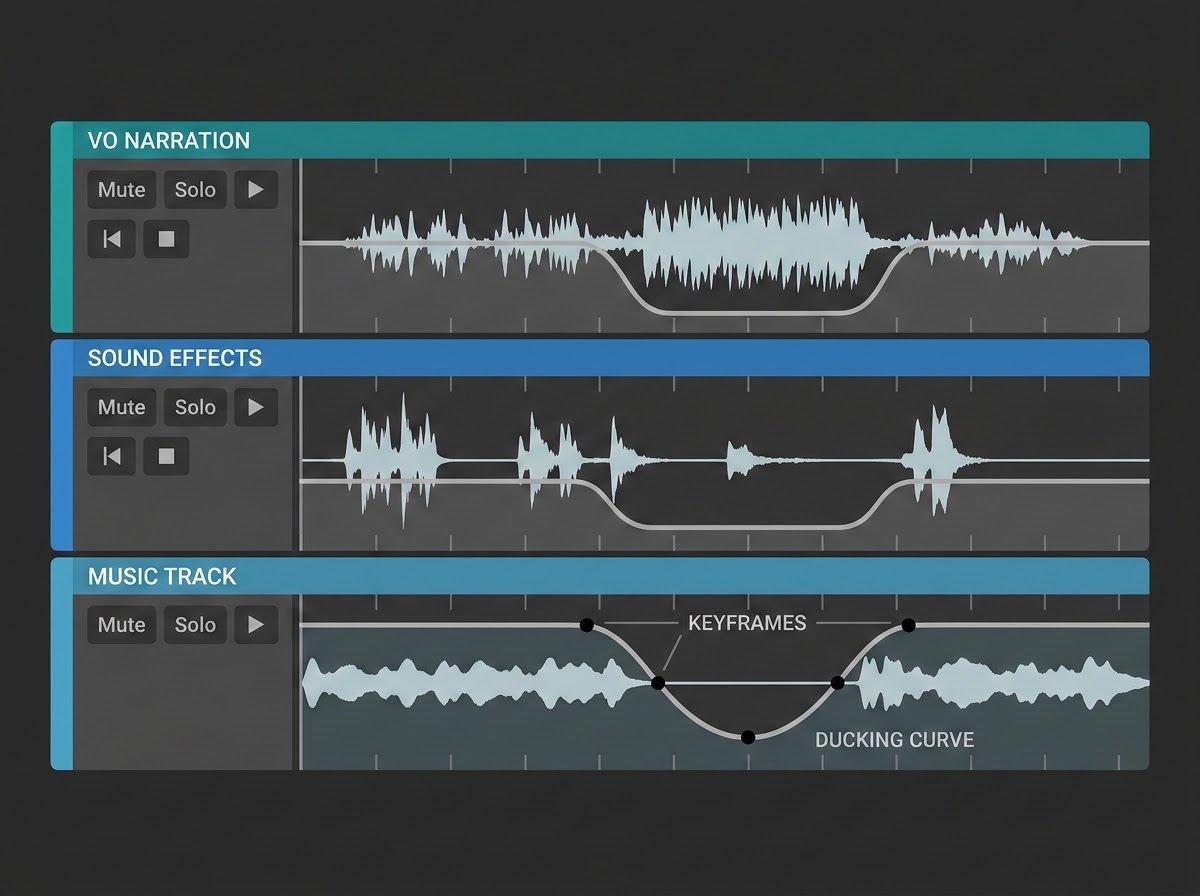
Music provides continuity and atmosphere. Narration communicates information. Sound effects draw attention to specific actions or details. When these elements compete, the video can feel cluttered even if each sound works well on its own.
1. Keep narration clear
If your video includes spoken content, lower the music during important lines. You can automate the volume so the soundtrack becomes quieter while someone speaks and returns to its previous level during pauses.
This technique, known as audio ducking for video narration, is standard practice across NLEs. Following best practices for audio ducking in AI videos, such as smooth attenuation curves, ensures that speech remains intelligible without creating jarring volume pumps.
The arrangement matters as much as the volume. Music with dense melodies or prominent midrange instruments can compete with speech. A simpler arrangement may work better under narration, even when both tracks have similar overall loudness.
If you're creating narration for your video, AI voice generators for video narration can help you explore synthetic voice options. Once you've chosen a voice, check the finished mix rather than assuming it will remain clear because it sounded good on its own.
2. Use sound effects selectively
Sound effects can reinforce a visual action, such as a product appearing on screen, a door opening, or a transition between scenes. They are most effective when they support something viewers can see or understand.
Place each effect close to the corresponding action, then adjust its level so it does not overpower the music or dialogue. Avoid adding a sound to every movement simply because the editing software offers an effect for it.
For scenes without visible sound sources, subtle ambient audio may help establish a setting. However, do not add effects that suggest an action occurred when the visuals do not support it.
3. Check the balance on different devices
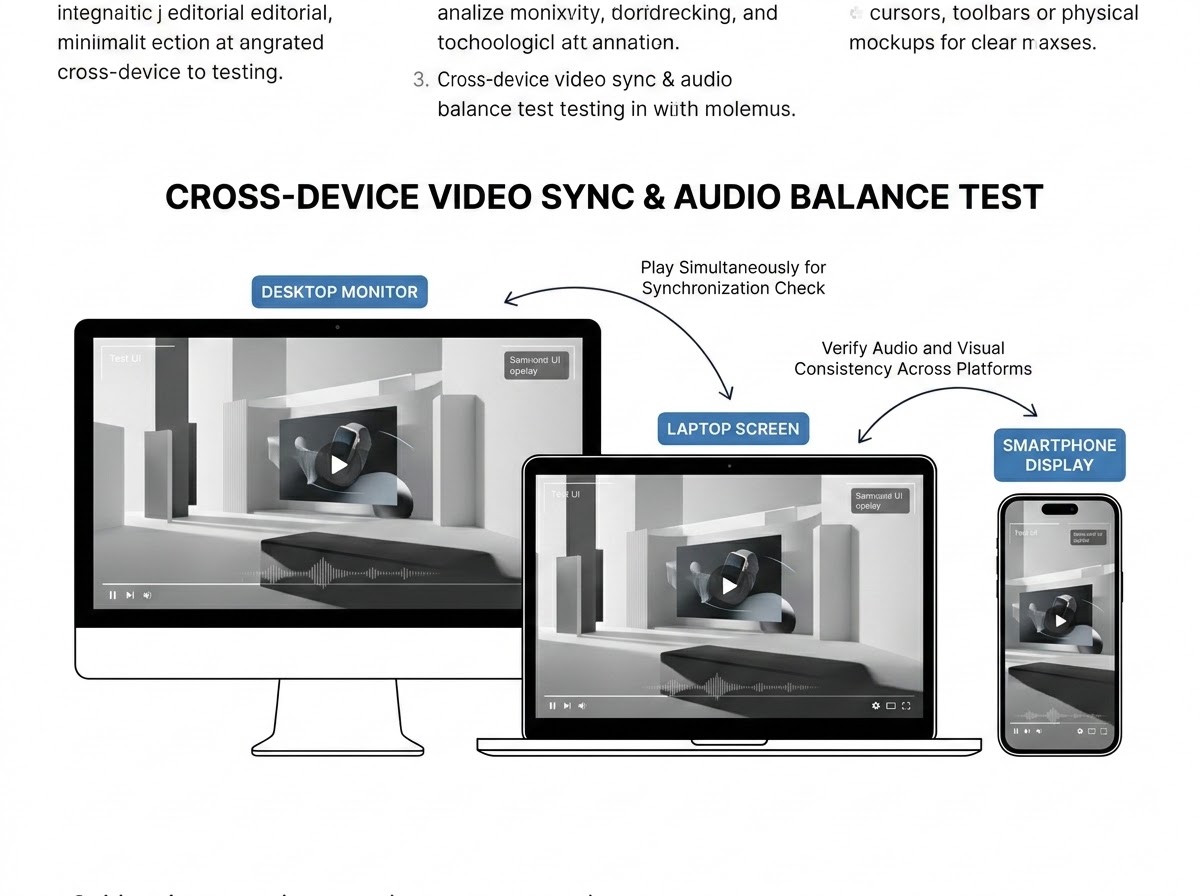
Listen to the mix using headphones and ordinary speakers, including a phone if your audience is likely to watch on mobile devices.
Check that speech remains understandable, quiet details are not lost, and sudden peaks do not make the video uncomfortable to hear. If the music disappears completely on a phone speaker or the voice becomes difficult to follow, revisit the balance before exporting.
Create a Clean Opening and Ending
The first and last seconds of a video deserve particular attention.
An opening that begins with silence followed by an abrupt musical entrance can feel accidental. A track that starts too slowly may also delay the point of a short promotional video. Choose an appropriate starting section and make sure the music supports the opening visual rather than distracting from it.
The ending needs the same care. If the video finishes in the middle of a musical phrase, the result can feel unfinished even when the visuals are strong.
To improve the ending:
Trim the music at a natural phrase boundary where possible.
Use a short fade when it suits the track and the final visual.
Align a musical accent with the closing shot when appropriate.
Leave enough time for a call to action or important on-screen text to be read.
Listen to the final seconds in context to catch abrupt cuts or unexpected silence.
A fade is not always necessary. A deliberate musical stop can be more effective for a fast edit, while a gradual fade may suit a cinematic sequence. Choose the ending that fits the style of the video.
An Audio Quality-Control Checklist
Before publishing your AI video, review the complete export from beginning to end.
The music starts at the intended moment.
Important visual actions and musical accents feel connected.
Transitions between clips do not create awkward jumps in rhythm.
There are no unexpected gaps, repeated sections, or abrupt audio cuts.
Narration remains clear throughout the video.
Sound effects support the visuals without overpowering other audio.
The final musical phrase fits the ending.
The audio does not clip or contain distracting changes in volume.
The exported video plays correctly, with audio and visuals synchronized.
The music's usage terms permit the intended publication and distribution.
Watch the export rather than relying entirely on the editing timeline. Problems can become more noticeable when the complete video plays continuously, especially around transitions and the final frame.
Final Thoughts
Syncing music to AI-generated videos is less about hitting every beat and more about making the sound and visuals work together. A few well-timed transitions, a balanced mix, and a deliberate ending can make separately generated clips feel like one coherent production.
Start with a stable edit, mark the moments that deserve emphasis, and adjust the soundtrack to support the story. Then review the complete export, make any necessary corrections, and confirm that your audio is ready for the platforms where you plan to publish.
Frequently Asked Questions
Find answers to common questions about syncing music to AI-generated videos, fixing audio timing issues, balancing music with narration, and preparing your finished video for publishing.
How do you sync music to AI-generated videos?
Import the finished clips and soundtrack into a video editor, identify important beats and scene changes, and adjust the timing of the cuts or music. Review transitions and the ending to make sure the audio supports the visual sequence naturally.
Can AI video clips be synchronized automatically to music?
Some AI video tools offer beat detection, audio-driven generation, or automated synchronization features. Their capabilities vary, and automatic alignment may still require manual corrections. Check the features of your chosen tool and review the final result.
What if the music is shorter than the AI video?
Try a longer track, extend a suitable musical section, or rearrange the edit to fit the available audio. Avoid obvious loops or abrupt endings. The best solution depends on the track's structure and the length of the remaining footage.
How do you prevent music from overpowering narration?
Lower the music during speech, use volume automation or audio ducking, and choose an arrangement that leaves room for the voice. Check the balance on more than one playback device before publishing.
Can I use AI-generated music in commercial videos?
That depends on the music generator's terms, your subscription or license, and how you intend to use it. Check the applicable commercial-use permissions, attribution requirements, and any restrictions on advertising or client work. Keep a record of the source and terms that applied when you obtained the track.

Lahaga Aondowase
Is the founder of AI Video Tools Pro, an AI video tools directory that helps creators, marketers, educators, and businesses discover AI video software. He researches and evaluates AI video tools based on their features, use cases, pricing, and practical workflows.
Related Articles
View All


User Comments (0)